
We have moved Trailforks support to a new help center. Please visit help.trailforks.com for support.
These articles might be out of date.
These articles might be out of date.
Welcome to Trailforks. In this article we’ll describe how to easily add routes, trails, ridelogs and personal rideplans to your Garmin Connect account as a Garmin course. This allows you to easily download courses to your Garmin device.
Let’s get started! The first step happens on Trailforks. You’ll want to find a route, trail, ridelog or rideplan on Trailforks that you would like to sync. Below I’ve found a popular route in Hawaii:
![photo]()
To save this route to your Garmin account click on the ‘save/wishlist’. It’s circled in red in the image above.
After clicking on the ‘save/wishlist’ button a popup window will appear that looks like this:
![photo]()
The option you are looking for is the ‘Save to Garmin’ button. It’s circled in red in the image above. To save this route to Garmin simply click on the ‘Save to Garmin’ button. If your Trailforks account is already linked to Garmin and the appropriate permissions are in place you’ll receive a dialog message letting you know the route was successfully added to Garmin:
![photo]()
That’s it! Now when you navigate to your Garmin Connect account (we’ve provided a direct link from the success dialog) You’ll see the Trailforks route.
When logging in to your Garmin Connect account you’ll be directed to your Dashboard. On the left side of the page you’ll see a list of dropdown options as seen in the image below:
![photo]()
Navigate to Training & Planning and then on Courses. On this Courses page you will see the route that you recently saved to Garmin from Trailforks. Simply click on ‘Send to Device’ to send it to any Garmin device connected to your Garmin account.
![photo]()
My Trailforks account isn’t linked to my Garmin account, can I still use this feature?
Yes absolutely! If you click on a ‘Save to Garmin’ button and your account is not linked, follow the onscreen instructions and you will be redirected to the Garmin website where you will be asked to login and link your Trailforks account to Garmin. Below is an example of what this page will look like once you have logged into your Garmin account:
![photo]()
If any of the switches are off be sure to set them off to allows Trailforks access to send data to your Garmin account. After saving and approving these changes you will be redirected back to the Trailforks route where you now click on the ‘Save to Garmin’ button to save the route.
And that’s it. Enjoy syncing your favorite routes, trail, ridelogs and rideplans to your Garmin connect account.
Let’s get started! The first step happens on Trailforks. You’ll want to find a route, trail, ridelog or rideplan on Trailforks that you would like to sync. Below I’ve found a popular route in Hawaii:
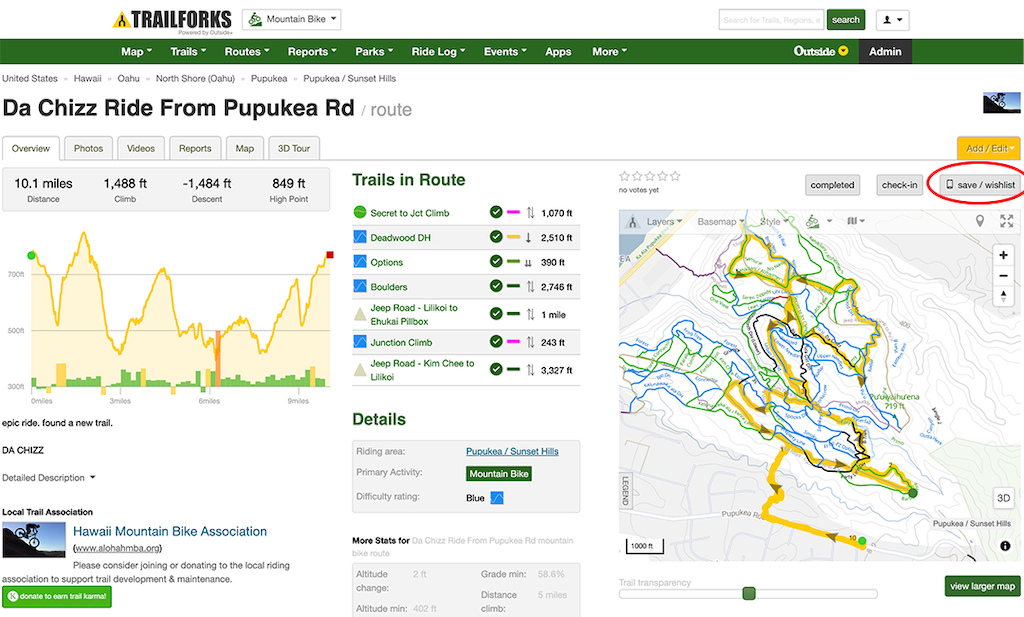
The 'save/wishlist' button is where you may save the route to Garmin, add it to your wishlist or share with friends.
To save this route to your Garmin account click on the ‘save/wishlist’. It’s circled in red in the image above.
After clicking on the ‘save/wishlist’ button a popup window will appear that looks like this:
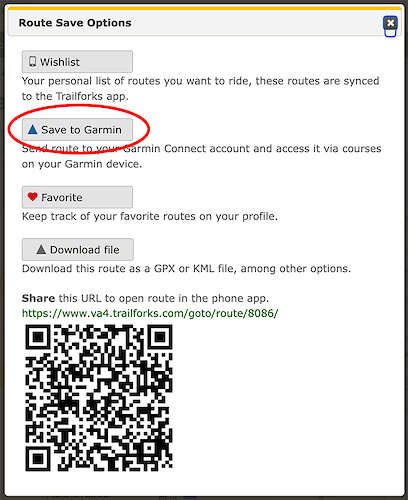
The 'Save to Garmin' button is what you are looking for.
The option you are looking for is the ‘Save to Garmin’ button. It’s circled in red in the image above. To save this route to Garmin simply click on the ‘Save to Garmin’ button. If your Trailforks account is already linked to Garmin and the appropriate permissions are in place you’ll receive a dialog message letting you know the route was successfully added to Garmin:
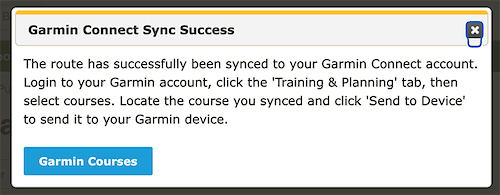
When you see this dialog you know you have successfully saved the route to Garmin.
That’s it! Now when you navigate to your Garmin Connect account (we’ve provided a direct link from the success dialog) You’ll see the Trailforks route.
When logging in to your Garmin Connect account you’ll be directed to your Dashboard. On the left side of the page you’ll see a list of dropdown options as seen in the image below:
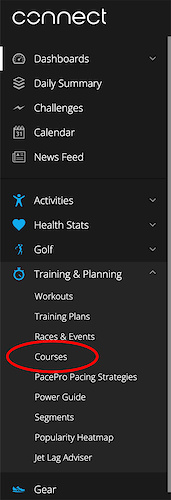
Look for the 'Courses' link in the Garmin Connect control panel.
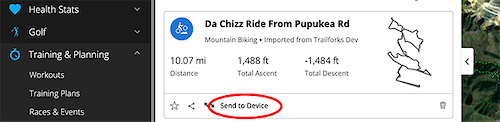
Navigate to Training & Planning and then on Courses. On this Courses page you will see the route that you recently saved to Garmin from Trailforks. Simply click on ‘Send to Device’ to send it to any Garmin device connected to your Garmin account.
My Trailforks account isn’t linked to my Garmin account, can I still use this feature?
Yes absolutely! If you click on a ‘Save to Garmin’ button and your account is not linked, follow the onscreen instructions and you will be redirected to the Garmin website where you will be asked to login and link your Trailforks account to Garmin. Below is an example of what this page will look like once you have logged into your Garmin account:
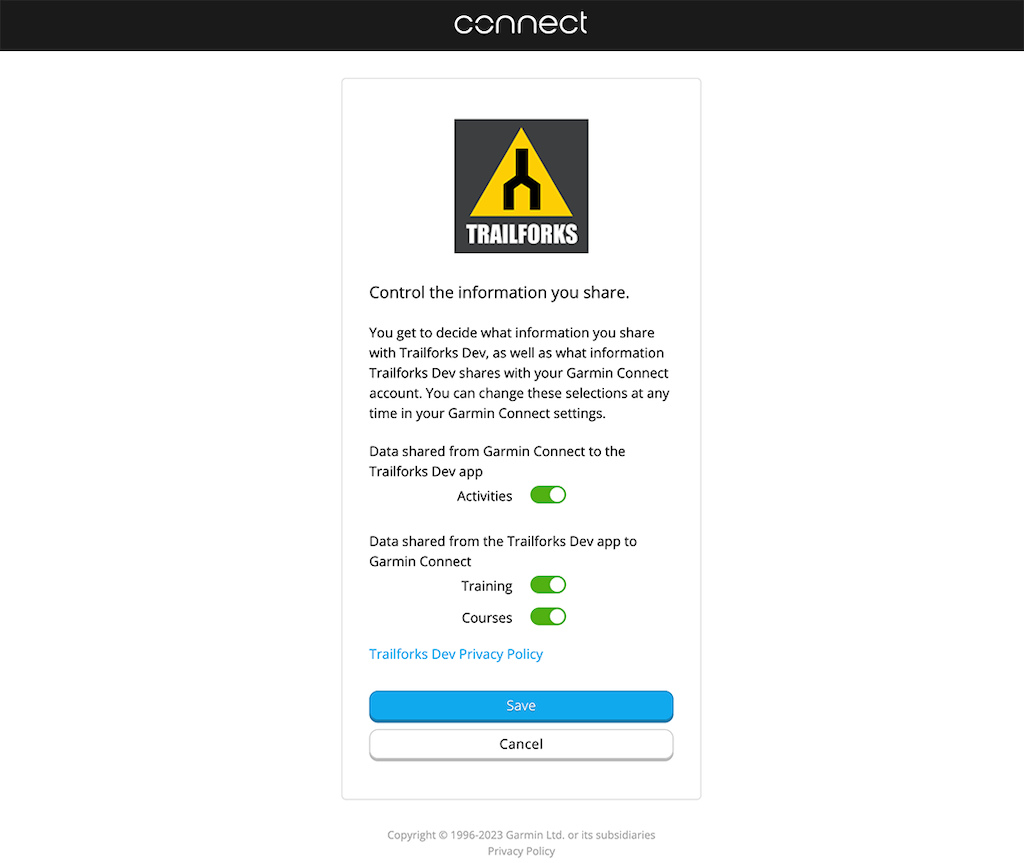
It's easy to link to your Garmin account from Trailforks.
If any of the switches are off be sure to set them off to allows Trailforks access to send data to your Garmin account. After saving and approving these changes you will be redirected back to the Trailforks route where you now click on the ‘Save to Garmin’ button to save the route.
And that’s it. Enjoy syncing your favorite routes, trail, ridelogs and rideplans to your Garmin connect account.
- By mikeysolis

- #163 - 11,702 views