
We have moved Trailforks support to a new help center. Please visit help.trailforks.com for support.
These articles might be out of date.
These articles might be out of date.
After you've saved a recorded ride in the Trailforks app if it has not shown up in the "My Ridelogs" section on the Trailforks.com website it might be because there was a problem uploading the ride.
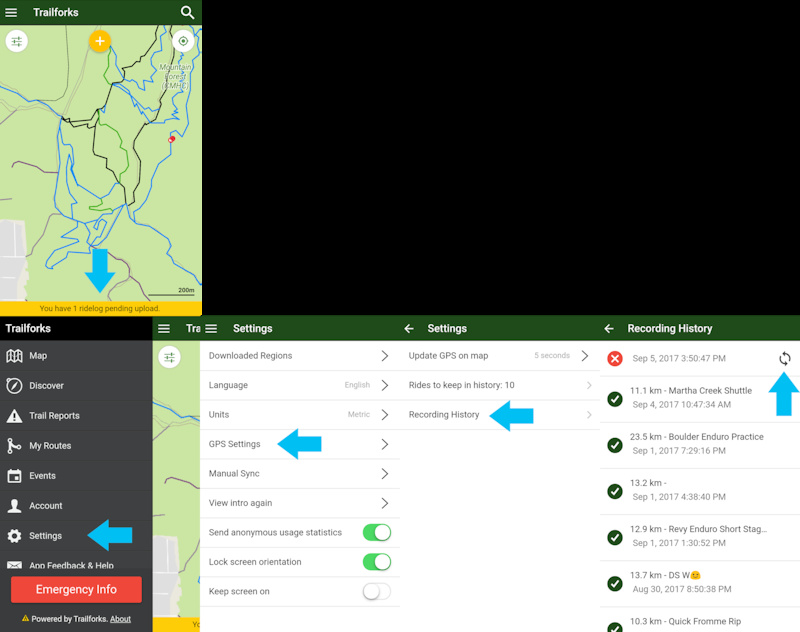
You can check in the app if there was a problem uploading and retry the upload. First at the bottom of the map should show a yellow bar listing any pending recorded ride uploads. Clicking this will load the app "Recording History" page. You can also access this page from the app settings, follow the screenshots below for an example.
Once at the 'Recording History' list if you see a ride with a red X, this means it hasn't uploaded, you can press the sync icon on the right to manually retry an upload. The app will also try and upload the ride in the background if you have the app open long enough.
Once your ridelog is uploaded it may take a few minutes to process and become available. When you visit the "My Ridelogs" section in the app, you will have to drag the page down to refresh the list.
![photo]()
You can check in the app if there was a problem uploading and retry the upload. First at the bottom of the map should show a yellow bar listing any pending recorded ride uploads. Clicking this will load the app "Recording History" page. You can also access this page from the app settings, follow the screenshots below for an example.
Once at the 'Recording History' list if you see a ride with a red X, this means it hasn't uploaded, you can press the sync icon on the right to manually retry an upload. The app will also try and upload the ride in the background if you have the app open long enough.
Once your ridelog is uploaded it may take a few minutes to process and become available. When you visit the "My Ridelogs" section in the app, you will have to drag the page down to refresh the list.
- By canadaka
 Trailforks
 - #89 - 14,829 views